Kubernetes Pod Lifecycle — What Really Happens to a Pod?
A beginner-friendly breakdown of what happens to a Pod from the moment it's created to the moment it's gone — phases, restart policies, and why it all matters.
What Even Is a Pod?
Before we talk about lifecycle, let's make sure we're on the same page.
A Pod is the smallest unit in Kubernetes. Think of it as a small box that holds your application container (usually Docker). Kubernetes doesn't manage containers directly — it manages Pods. And those Pods go through a very specific journey from creation to termination.
Think of it like this: A Pod is like an employee joining a company. They go through onboarding (Pending), start working (Running), either complete their contract (Succeeded) or get fired for poor performance (Failed) — and sometimes HR just loses track of them entirely (Unknown).
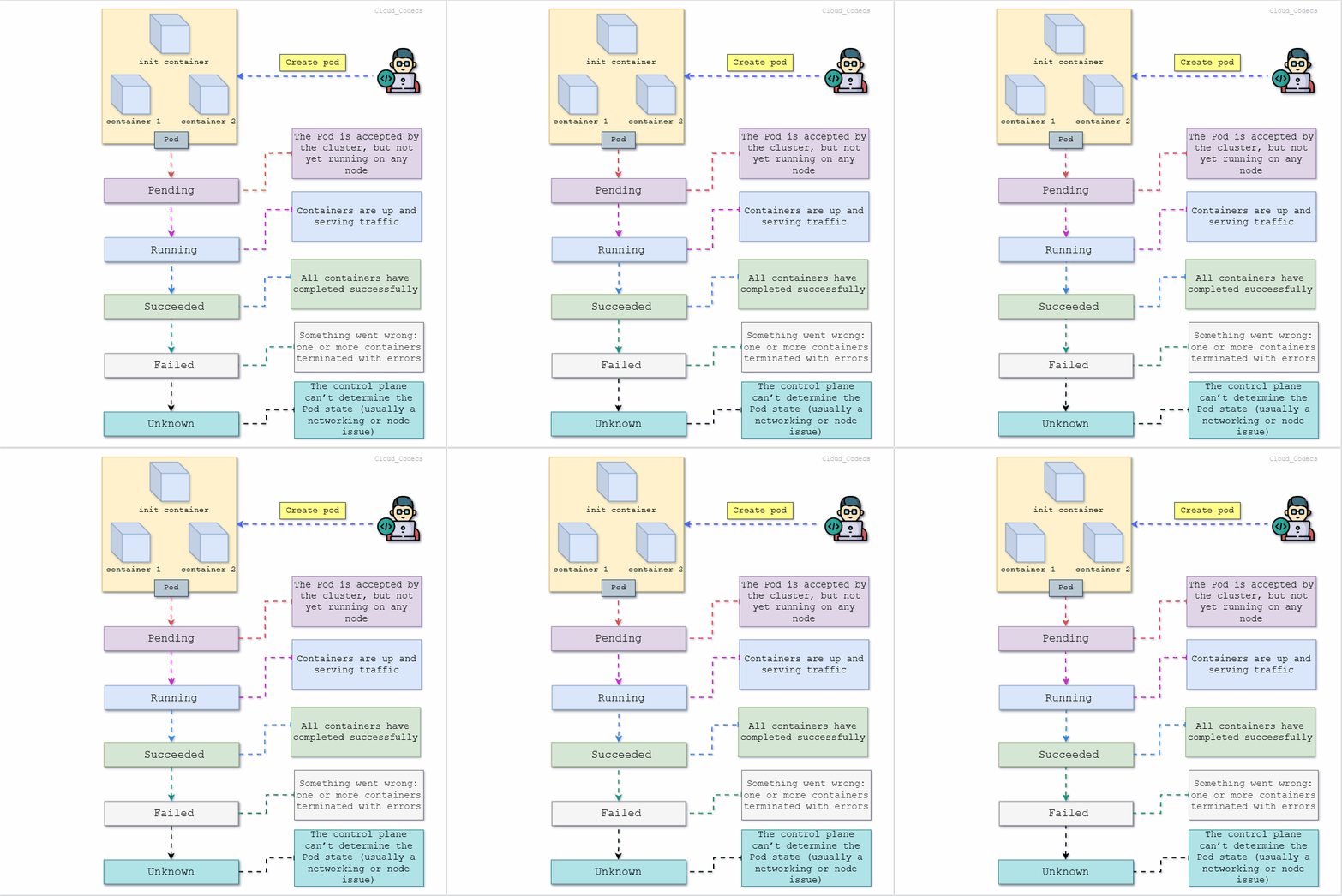 Pod Lifecycle — From Pending to Termination
The Big Picture
Every Pod you create in Kubernetes passes through a set of well-defined phases. Kubernetes uses these phases to track what's happening inside your cluster at any given moment.
| Phase | Meaning |
|---|---|
| Pending | Accepted by the cluster, but not running yet |
| Running | At least one container is up and running |
| Succeeded | All containers finished successfully |
| Failed | One or more containers exited with an error |
| Unknown | Kubernetes can't determine the Pod's state |
You talk to the cluster via kubectl, Kubernetes tracks the phase, and your app lives or dies based on what happens inside the Pod.
The 5 Phases — Explained Simply
Pending
This is the very first stage. You've submitted your Pod to Kubernetes — it's accepted — but nothing is running yet.
Kubernetes is still figuring things out:
- Looking for a node with enough CPU and memory
- Pulling the container image from a registry
- Waiting on a PersistentVolume to attach
If your Pod is stuck here for a long time, that's your first red flag. Check node resources or image name typos.
kubectl describe pod <pod-name>
# Look at the Events section at the bottom
Running
The happy place. A node was found, the container started, and your application is doing its job.
This doesn't mean everything is perfect though. A container could be running but your app inside it might still be crashing in a loop (that's called a CrashLoopBackOff — a whole other topic). Running just means the container process started.
Succeeded
Not every Pod runs forever. Some are designed to do one job and stop — like:
- A database migration script
- A nightly batch processing job
- A one-time data cleanup task
When all containers finish their work and exit cleanly with code 0, the Pod moves to Succeeded. Job done. No restart needed.
Failed
Something went wrong. One or more containers crashed or exited with a non-zero error code. Kubernetes marks the Pod as Failed.
This is where logs become your best friend:
kubectl logs <pod-name>
kubectl logs <pod-name> --previous   # if container already restarted
Unknown
This one is unsettling. Kubernetes genuinely doesn't know what's happening with the Pod.
Usually means:
- The node the Pod was on went down
- There's a network issue between the control plane and the node
- The kubelet on that node stopped responding
kubectl get nodes
# If a node shows NotReady, that's your culprit
restartPolicy — What Happens After a Failure?
Kubernetes lets you control what it should do when a Pod's container exits. This is the restartPolicy field in your Pod spec.
| Policy | Behavior | Best For |
|---|---|---|
| Always | Restart no matter what | Web servers, APIs, long-running apps |
| OnFailure | Only restart if it failed | Batch jobs, scripts |
| Never | Never restart | One-time tasks, debugging |
apiVersion: v1
kind: Pod
metadata:
  name: my-app
spec:
  restartPolicy: Always   # change this based on your use case
  containers:
    - name: my-container
      image: nginx
Key insight: Getting
restartPolicywrong is one of the most common beginner mistakes. A web server withNeverwill go down and stay down. A one-time migration script withAlwayswill keep re-running forever. Pick the right one for the job.
How It All Flows — Step by Step
Here's what actually happens when you create a Pod:
Pod Creation Flow
1 — You run kubectl apply
Your request hits the API Server. The Pod is created in etcd with phase: Pending.
2 — Scheduler picks a node
The Scheduler spots the unscheduled Pod and assigns it to the best available node based on resources.
3 — kubelet starts the container
The kubelet on that node gets the instruction, pulls the image, and starts the container. Phase moves to Running.
4 — Container finishes or crashes
If it exits cleanly → Succeeded. If it exits with an error → Failed. If the node goes silent → Unknown.
5 — restartPolicy takes over
Based on your policy, Kubernetes either restarts the container, leaves it, or tries again on failure.
Key insight: Kubernetes works on desired state vs actual state. You say "I want this Pod running." Kubernetes constantly checks if reality matches that wish — and if a Pod dies, it works to bring it back (depending on your restart policy).
Quick Reference — All Phases
| Phase | What's Happening | Common Cause |
|---|---|---|
| Pending | Waiting to be scheduled | Not enough resources, image pull delay |
| Running | Container is active | Normal operation |
| Succeeded | Completed cleanly | Batch job finished |
| Failed | Exited with error | App crash, config issue |
| Unknown | State can't be determined | Node failure, network issue |
Wrapping Up
The Pod lifecycle isn't just theory — it directly affects how you debug, monitor, and design your applications on Kubernetes.
You describe what you want. Kubernetes schedules it, runs it, watches it, and restarts it if needed. Understanding the phases tells you exactly where in that journey something broke.
Once you get comfortable reading Pod phases, everything else clicks faster — health checks, liveness probes, Jobs, CronJobs — they all tie back to this same lifecycle.
Try it yourself: Spin up a local cluster with minikube and watch Pod phases in real time:
kubectl run test-pod --image=busybox --restart=Never -- /bin/sh -c "echo hello && sleep 5"
kubectl get pods -w
Watch it go from
Pending→Running→Succeededright in your terminal.